

Overview
Profound Agent Analytics now offers seamless integration with Adobe Analytics, enhancing your ability to correlate AI interactions with human engagement and business outcomes. This integration bridges the gap between AI visibility and traditional web analytics, providing a comprehensive view of your digital performance ecosystem. By connecting your Adobe Analytics report suite, Agent Analytics can import critical engagement and revenue metrics alongside our specialized AI tracking capabilities. This integration works both as a complementary extension to our core platform or as a standalone solution, giving you flexibility in how you monitor and optimize your digital presence for both human and AI visitors. The Adobe Analytics integration automatically synchronizes your analytics data in real-time when accessing the Adobe Analytics dashboard, allowing you to make data-driven decisions with the most current information available while maintaining strict privacy controls.Adobe Analytics Metrics
The following metrics are retrieved from the Adobe Analytics Reporting API:- Referrer (
referrer): The referring source of the visit, used to identify traffic originating from AI systems - Visits (
visits): The number of human sessions referred by AI platforms - Orders (
orders): Completed purchase events from AI-referred traffic - Revenue (
revenue): Total monetary value generated from AI-referred visits
Dashboard
Once connected, the Adobe Analytics tab in your Profound dashboard provides a unified view of how AI-referred traffic converts on your website.Summary Metrics
At the top of the dashboard, you’ll see high-level metrics for your selected date range:- Humans visited from AI systems: The total number of human visitors who arrived at your site after being referred by AI assistants
- Revenue from AI systems: The total revenue attributed to AI-referred traffic
Platforms
The Platforms table breaks down AI-referred traffic by the AI system that sent the visit. Each platform row includes:- Visits: Number of human visits referred by the platform
- Orders: Completed purchase events from those visits
- Revenue: Total revenue generated from AI-referred visitors
- Conversion Rate: Percentage of visits that resulted in an order
Human Visits by Page
The page-level breakdown shows which pages humans visit most after being referred by AI assistants. Each row includes:- Visits: Number of AI-referred visits to the page
- Orders: Purchase events that occurred on or through the page
- Revenue: Revenue attributed to the page
Prerequisites
- Adobe Analytics account
- Adobe Analytics configured for your website
- Access to a target Report Suite via your Adobe account
Configuration within Adobe Admin Console
1
Step 1
Go to the Adobe Admin Console and select your Adobe Analytics product.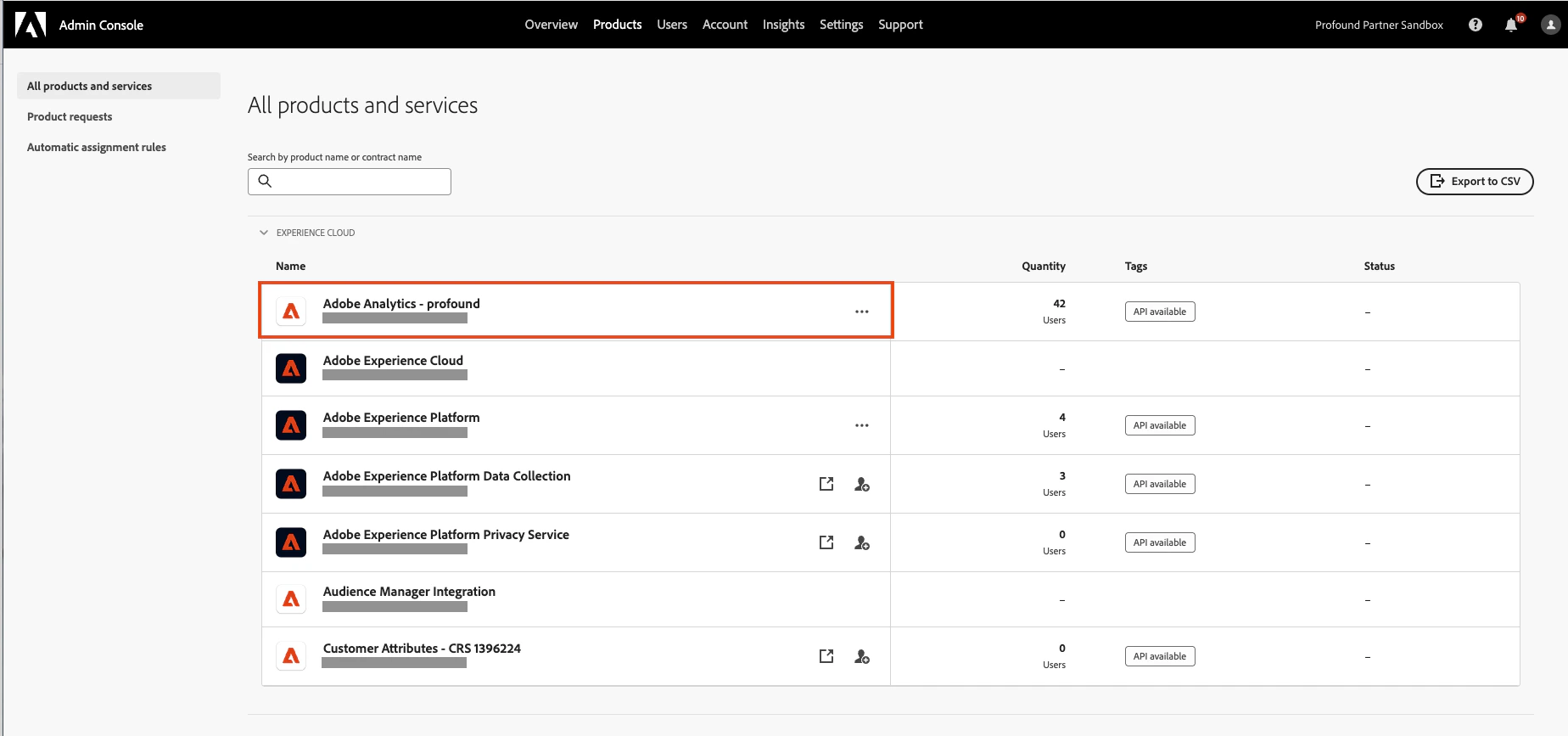
2
Step 2
In the Product Profiles section, create a new profile for Profound’s Agent Analytics Integration using the New Profile button. You’ll be prompted to give it a name and optionally a description.
3
Step 3
Click into the new product profile and navigate to the Permissions tab.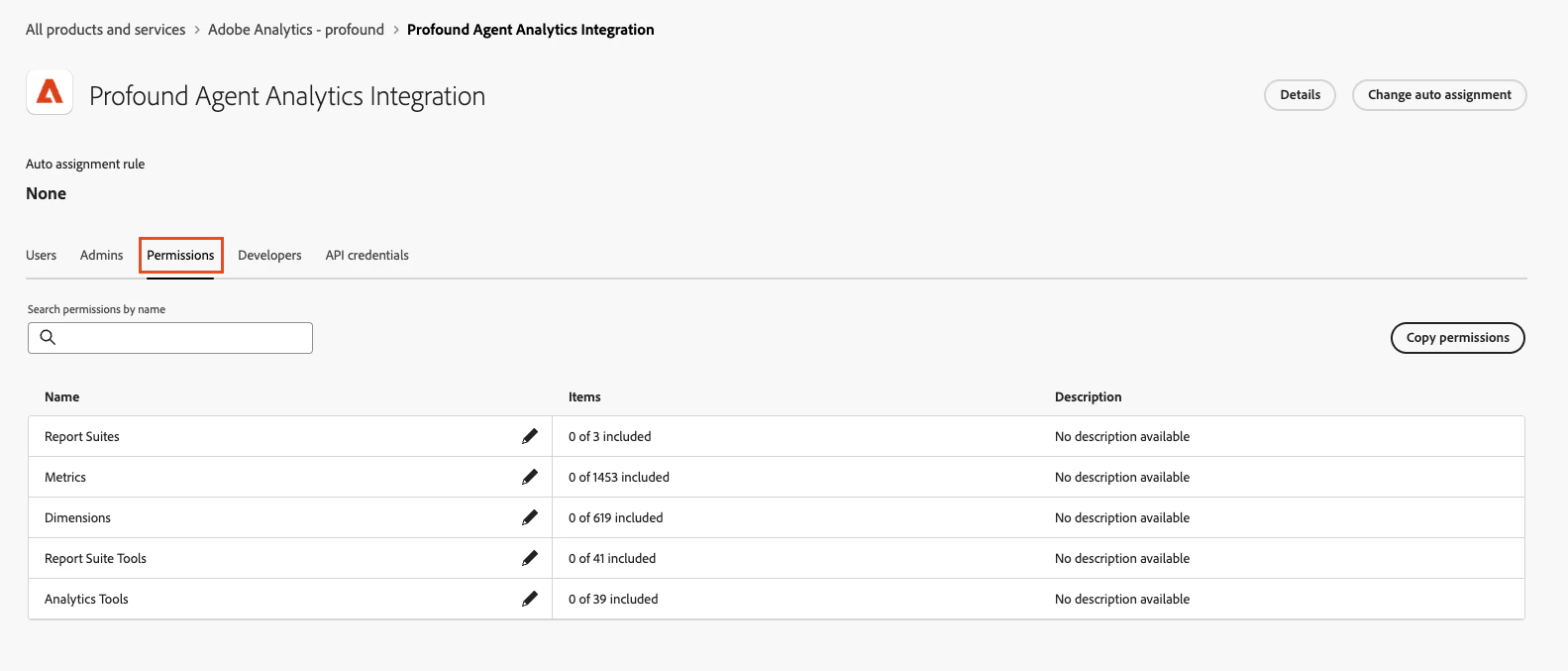
4
Step 4
Click on the edit icon within the Report Suites row.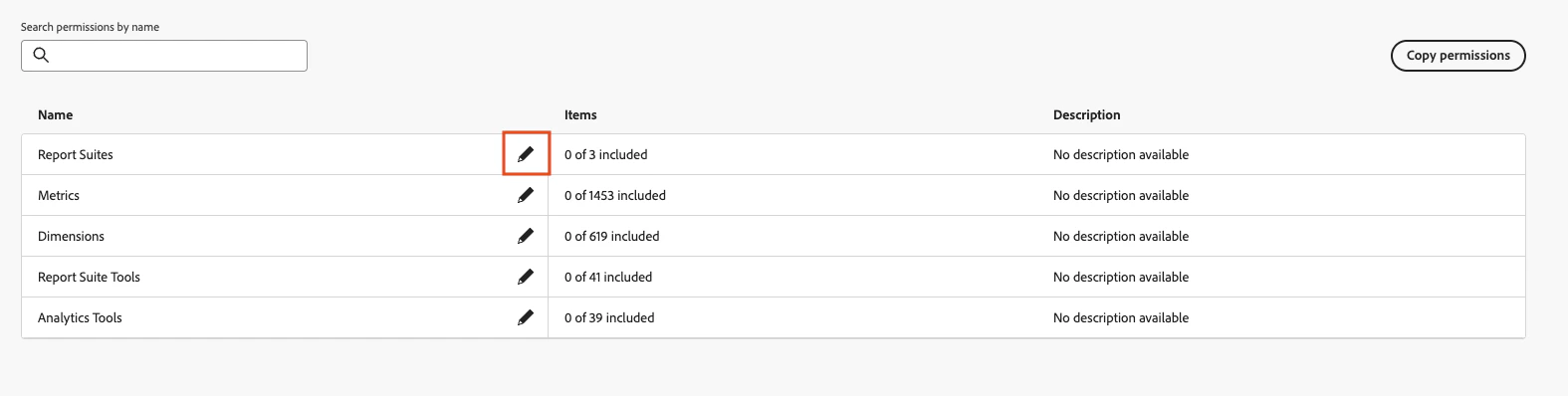
5
Step 5
For Report Suites, Metrics, and Dimensions, toggle on Auto-include for each one.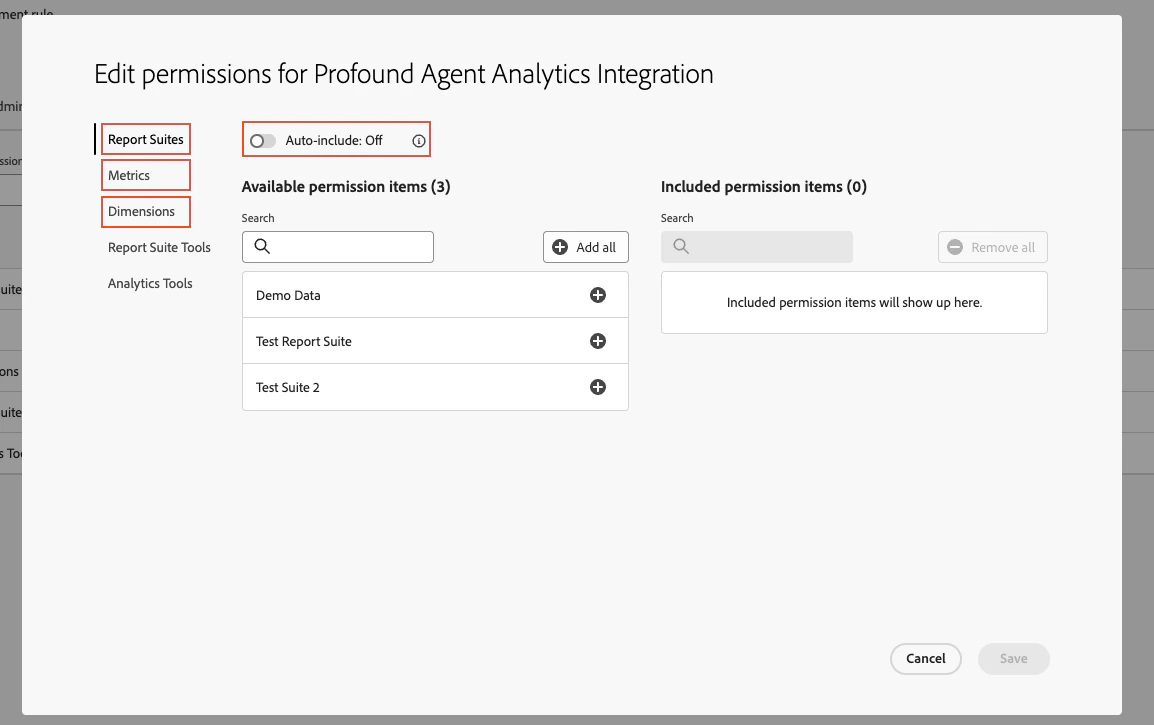
6
Step 6
Within the Report Suite Tools tab, add the Report Suite Mgmt permission.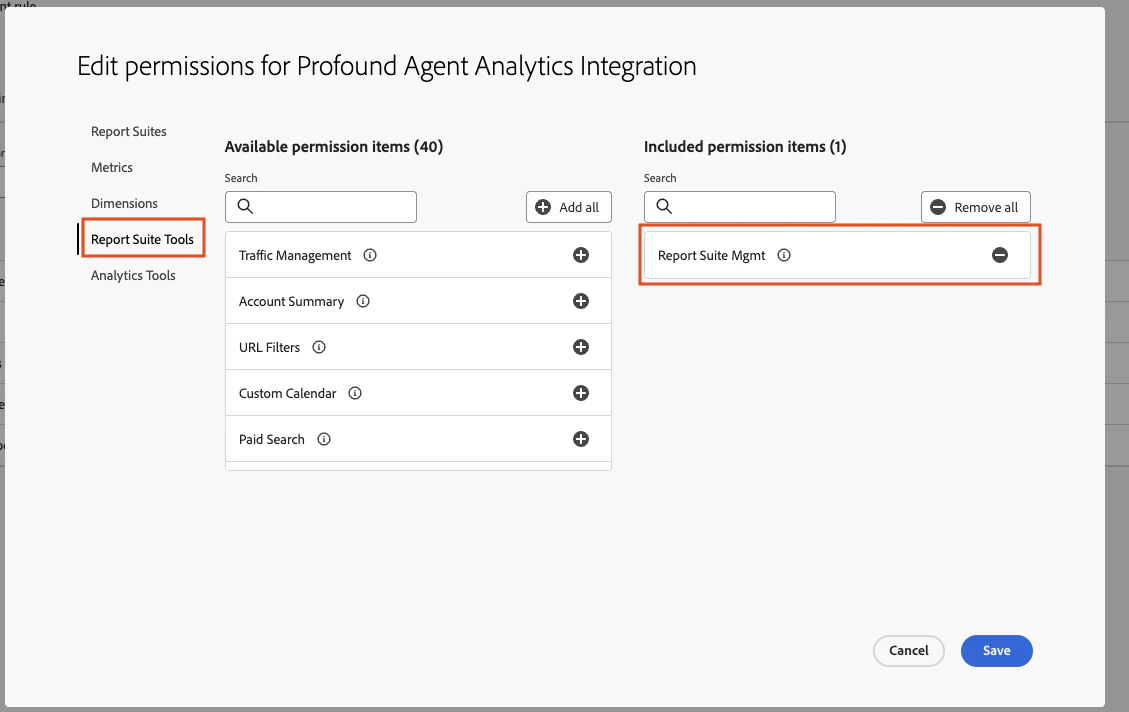
7
Step 7
Within the Analytics Tools tab, add the Web Services and Web Service Access permissions.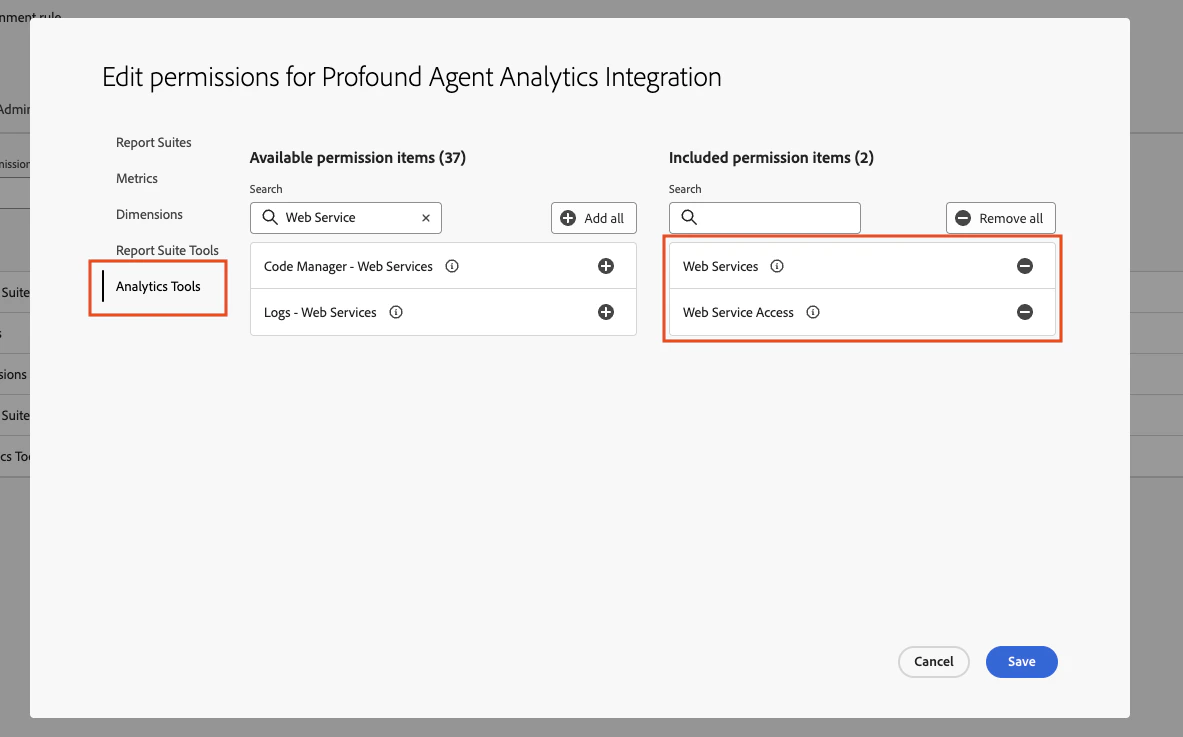
8
Step 8
Click Save.
Configuration within Adobe Developer Console
1
Step 1
Navigate to the Adobe Developer Console and click Create new project. Make sure you are creating the project under the same organization that the product profile was created under in the Admin Console.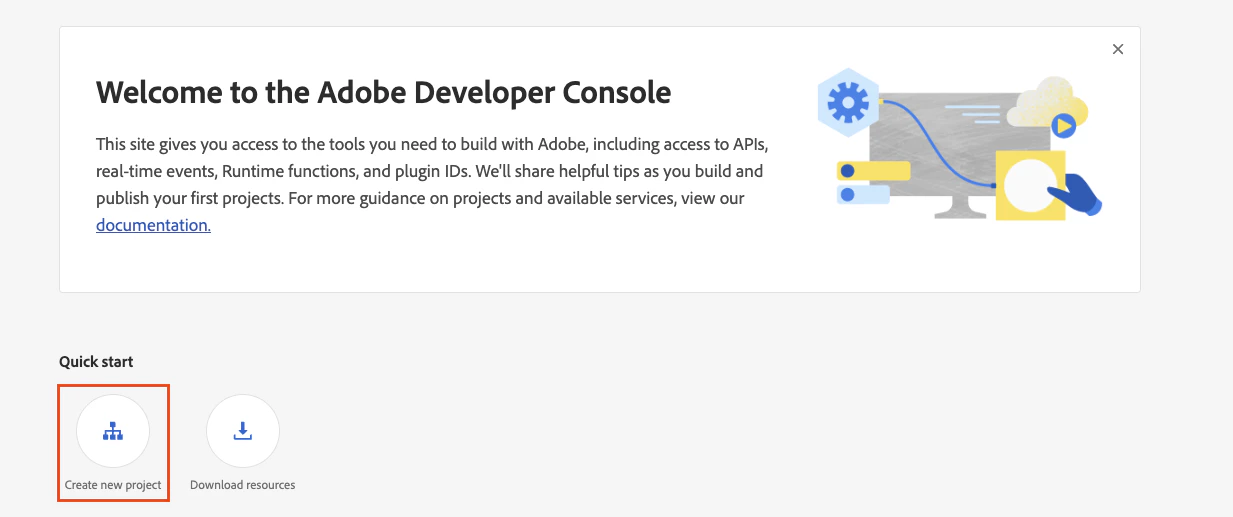
2
Step 2
Select Add API.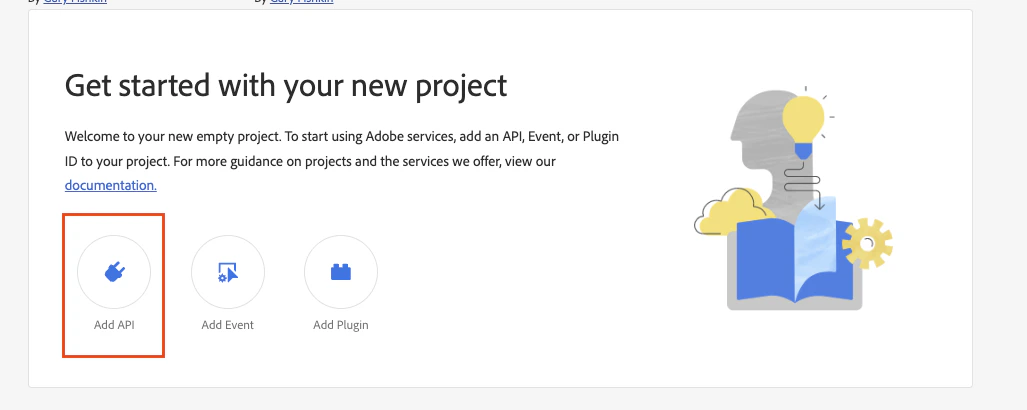
3
Step 3
Select Adobe Analytics.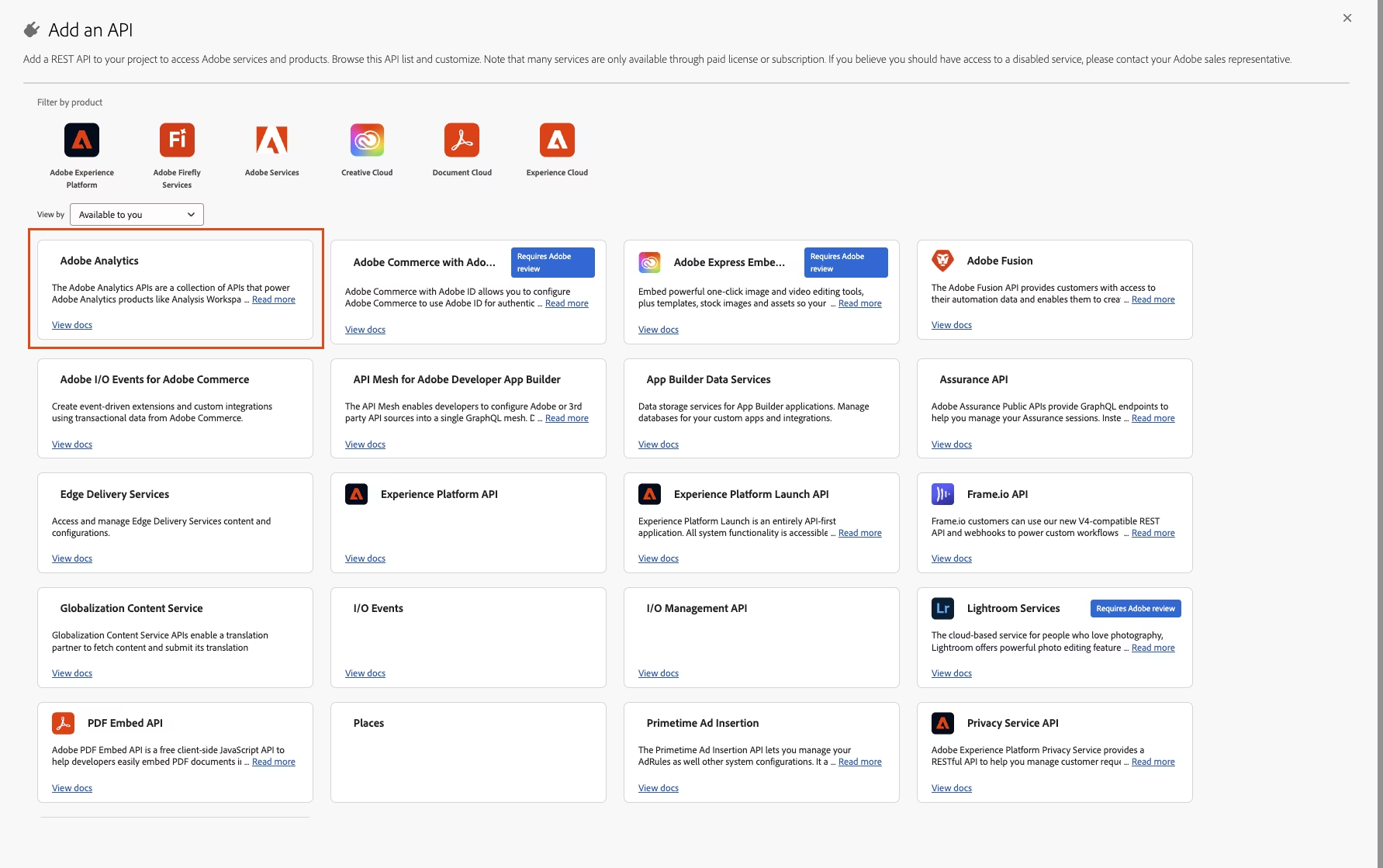
4
Step 4
Select Server-to-Server Authentication and click Next. After clicking next, input what you’d like to name the credential (for example, Profound Agent Analytics) and then click Next again.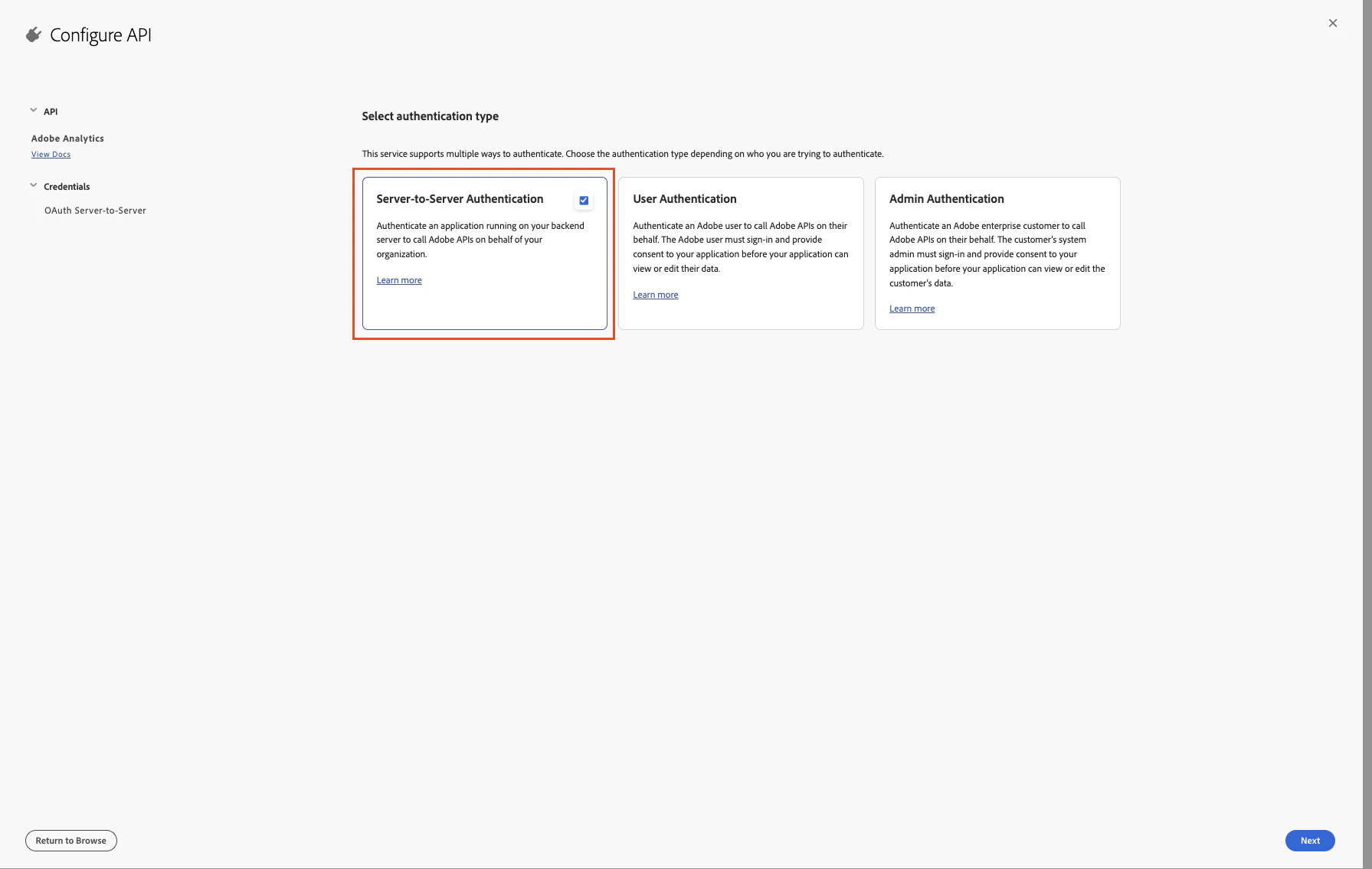
5
Step 5
From the Product Profile list, select the product profile that was created in the Admin Console in the previous steps. Then click Save configured API on the bottom right.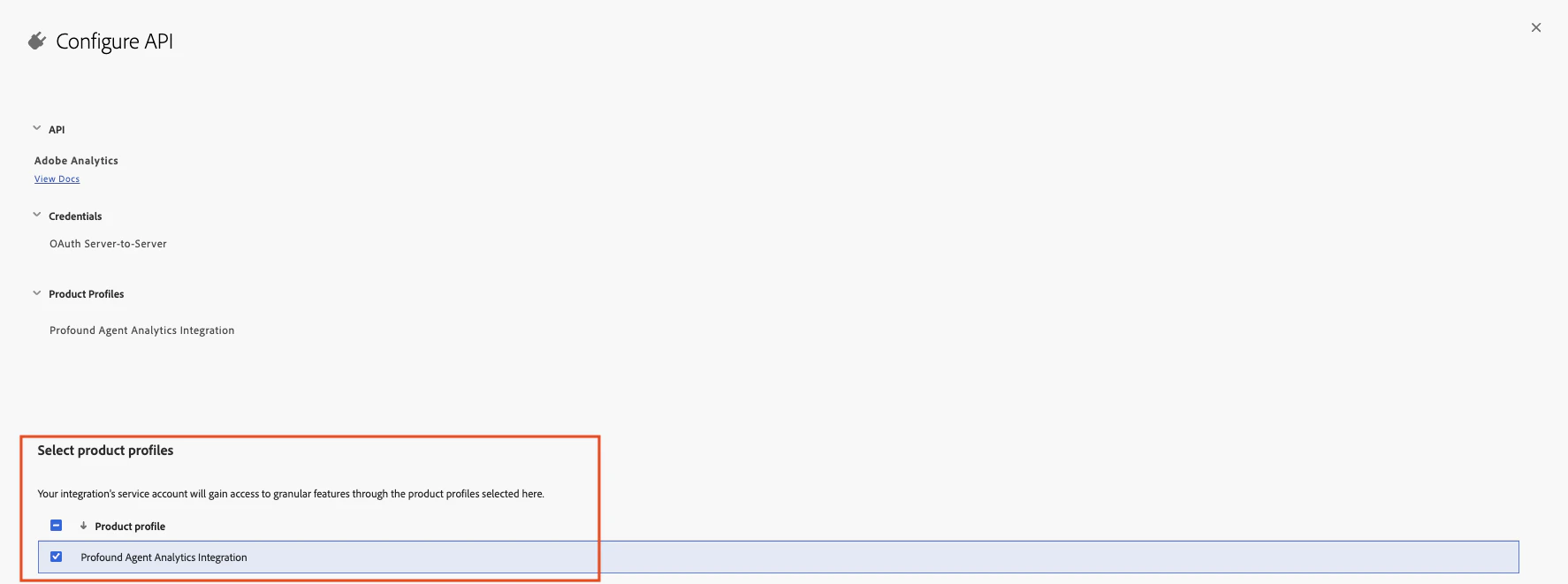
6
Step 6
In the newly created project, navigate to the OAuth Server-to-Server tab and retrieve the Client ID, Client Secret, and Organization ID. These values will be necessary when connecting the project within Profound.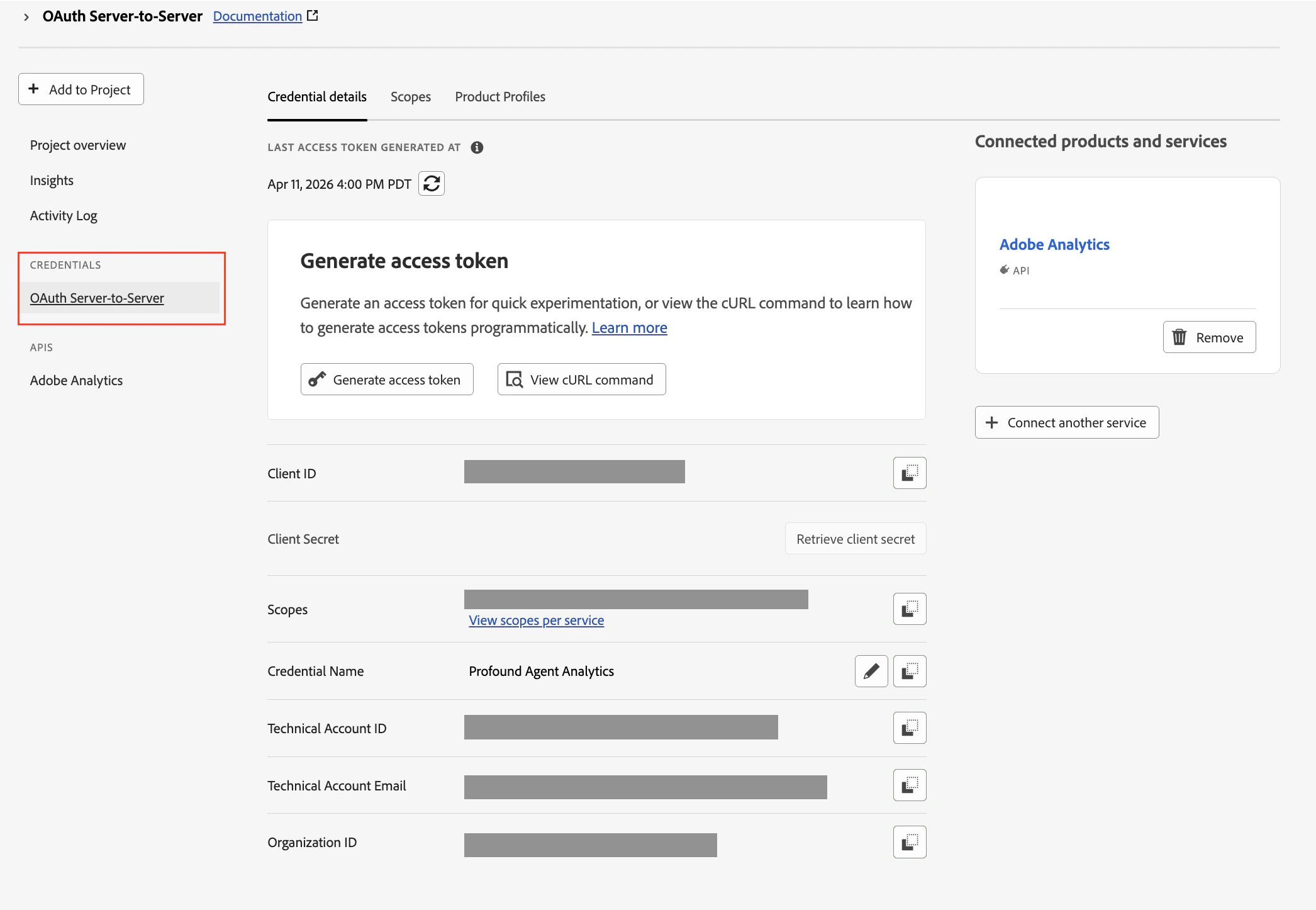
Configuration within Profound
- Agent Analytics + Adobe Analytics
- Adobe Analytics Alone
Learn how to integrate Adobe Analytics with your existing Agent Analytics configuration.
1
Step 1
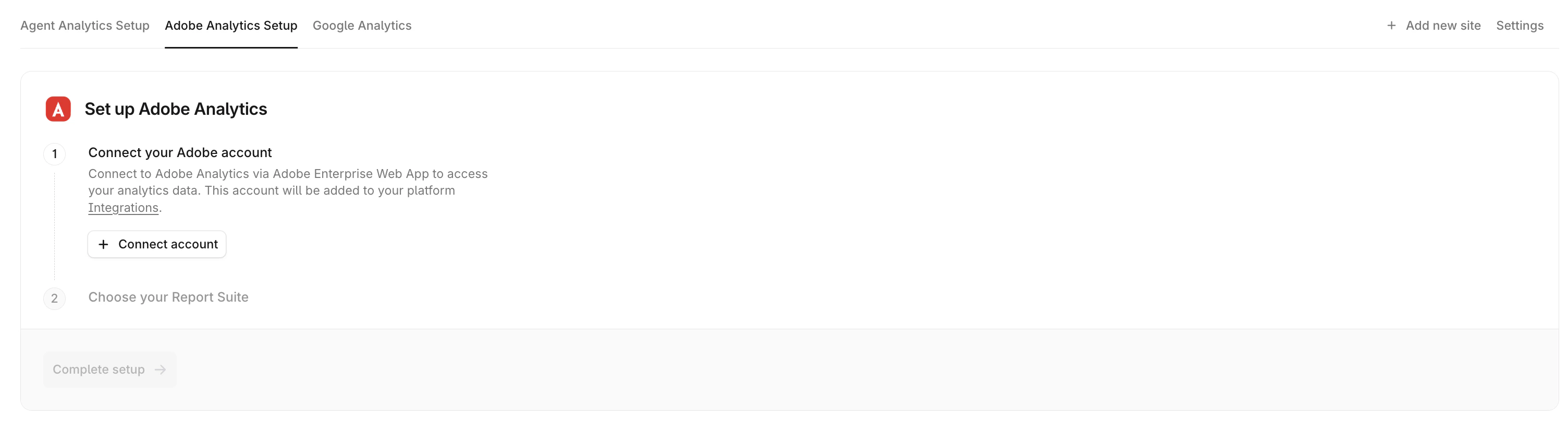
Navigate to the Adobe Analytics tab. Here you will find a button to Connect account.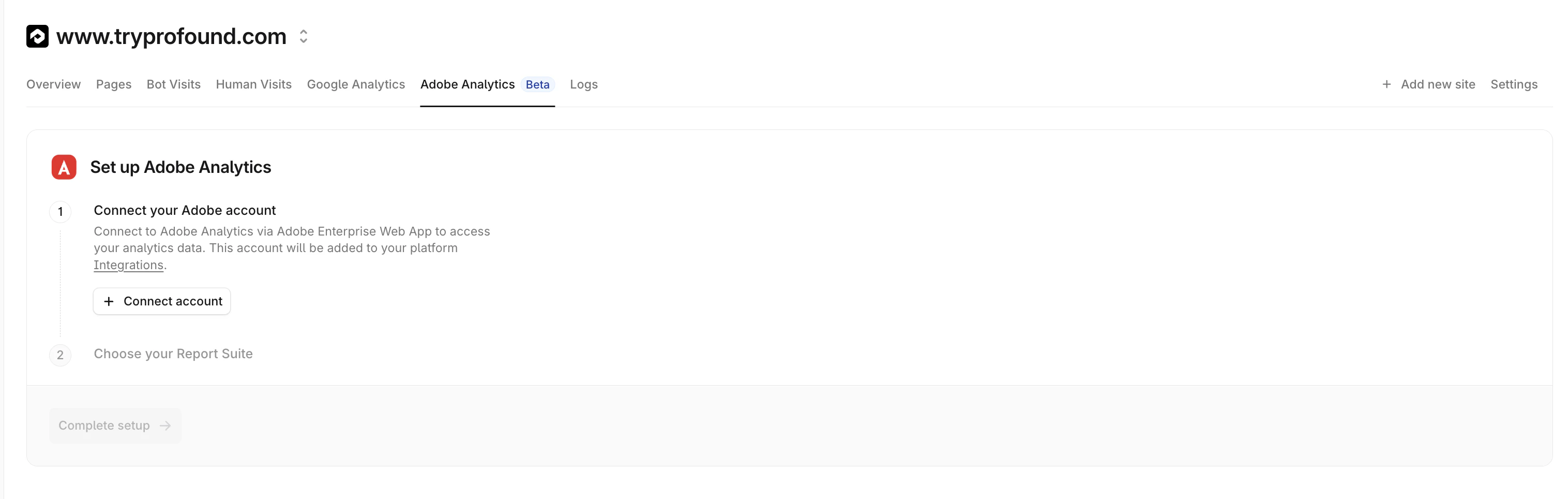
2
Step 2
Click Connect account.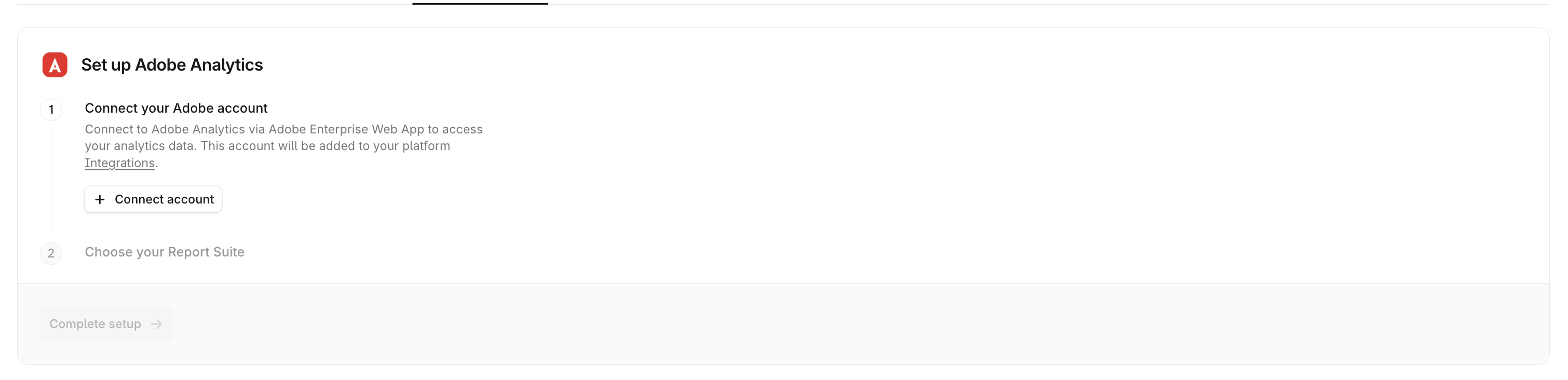
3
Step 3
Input the Client Secret, Client ID, and Organization ID retrieved from the Adobe Developer Console from the previous steps.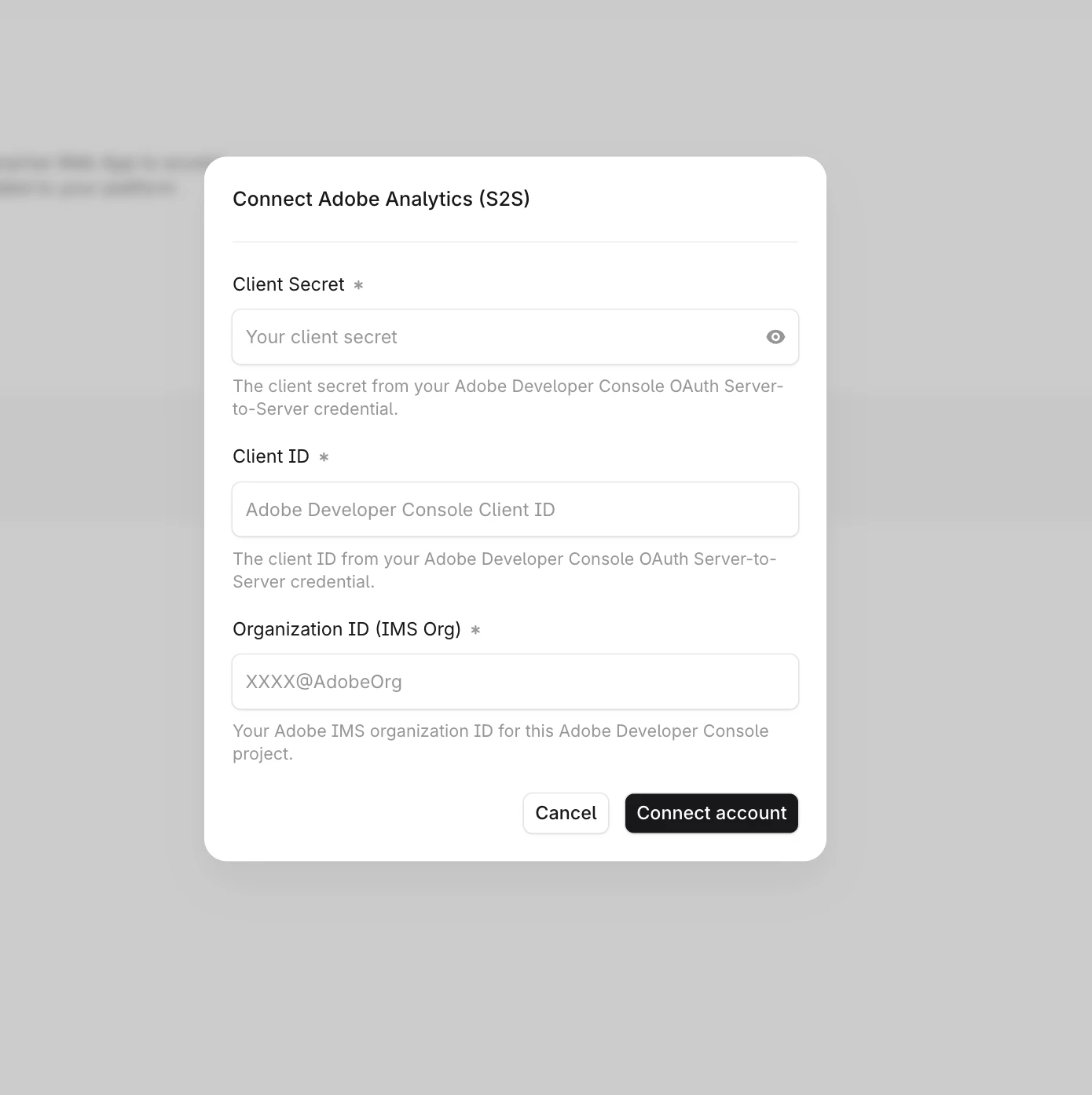
4
Step 4
Once your Adobe account is connected, choose your Report Suite. Select a report suite to connect to this domain from the dropdown.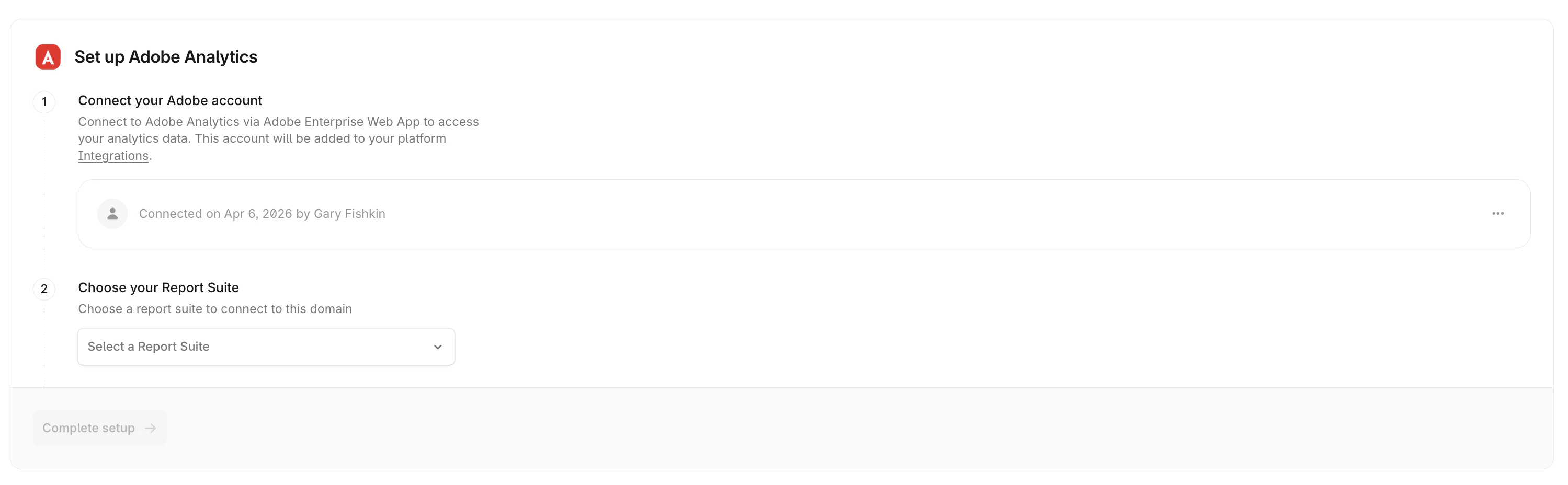
5
Step 5
Click Complete setup to finalize the connection.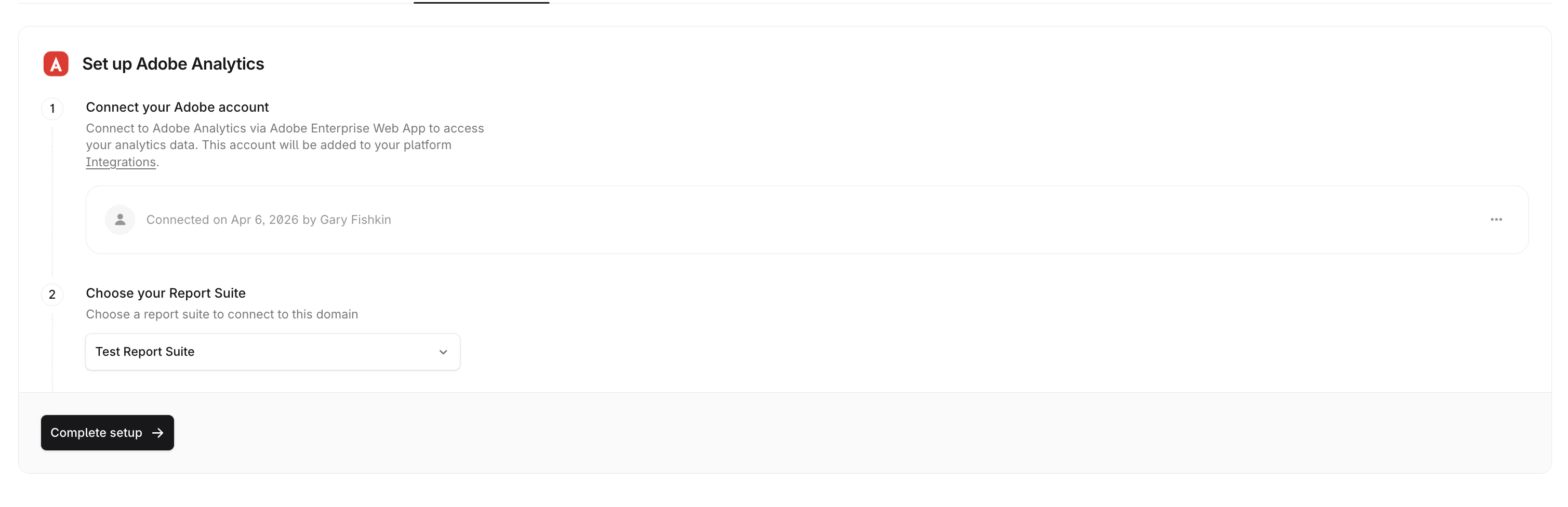
That’s it! Adobe Analytics is now connected. Reload your Adobe Analytics tab to see data from your selected report suite.
Disconnecting
You can disconnect the Adobe Analytics integration at any time in the Settings tab. Your integration will be disabled immediately.Security and Privacy
Profound requests READ ONLY access to your Adobe Analytics data and does not download, save, or otherwise retain your Adobe Analytics data.
Considerations
- Only one report suite can be connected per website at this time
- Only one member of your organization must complete the Adobe authentication process. They must have access to the target Adobe Analytics account and report suites.
- Adobe Analytics can be blocked by various browsers or browser extensions. For best results, we recommend using Adobe Analytics in conjunction with the Agent Analytics platform
Additional Resources
- Adobe Analytics API Documentation
- Adobe Exchange Listing
- Contact support@tryprofound.com for API-related questions