

Overview
The integration uses a Cloudflare Worker that runs as middleware to collect request metadata and send it to our Agent Analytics API. The Worker captures important request information like IP addresses, user agents, and referrers without affecting the actual request handling.Prerequisites
- A Cloudflare account with access to Workers
- Node.js installed on your development machine
- Access to your domain’s Cloudflare configuration
- A Profound Log Ingestion Token for Agent Analytics
Running a Shopify storefront? Do not put a Worker in front of it. Use one of the log drain options in our Shopify guide instead, which collects logs out-of-band.
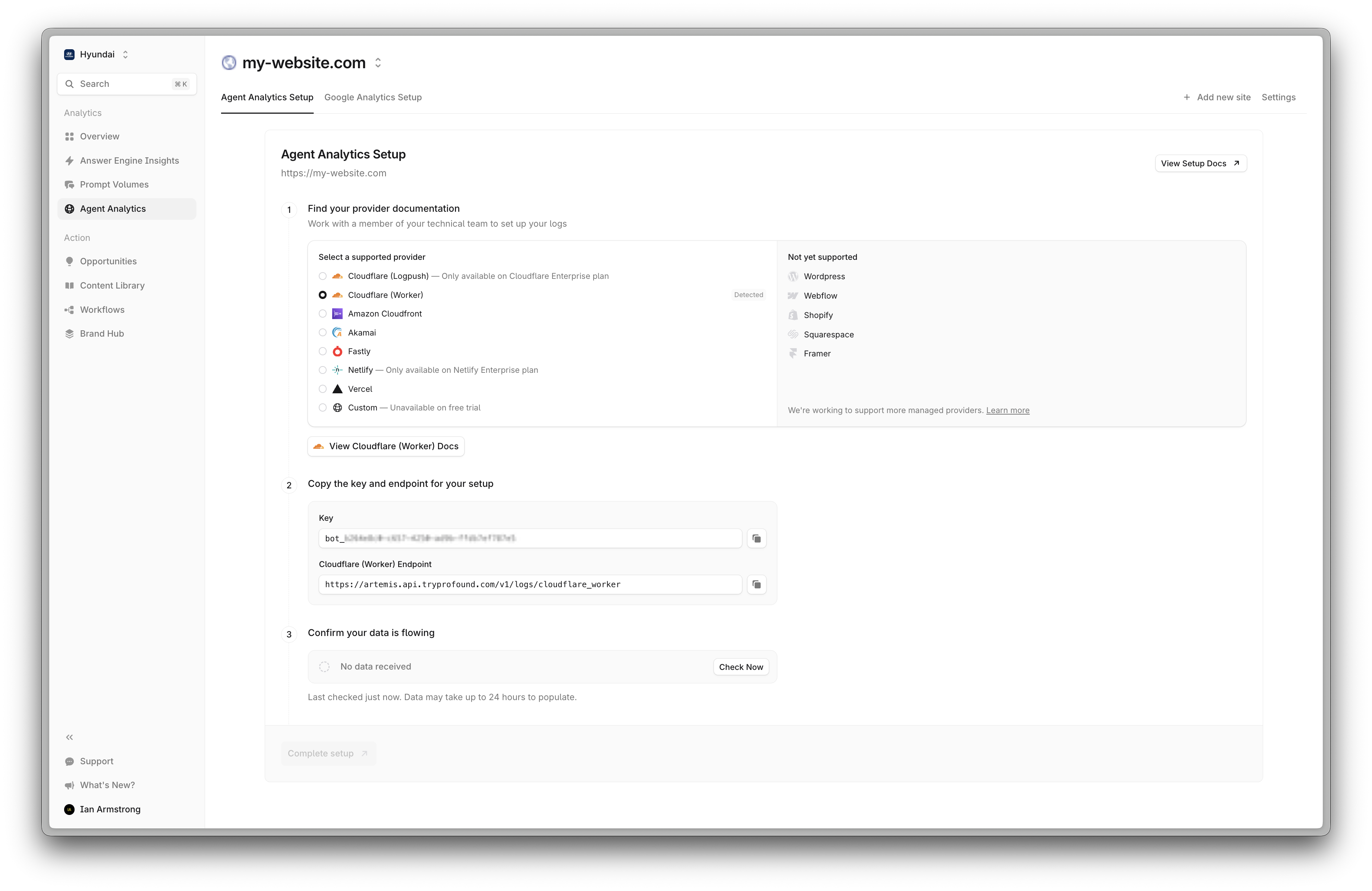
Implementation guide
1
Set up your development environment
Create a new Worker project and install dependencies:After npm launches, you’ll be prompted to select a starting point. Select “Hello World” as your starting category.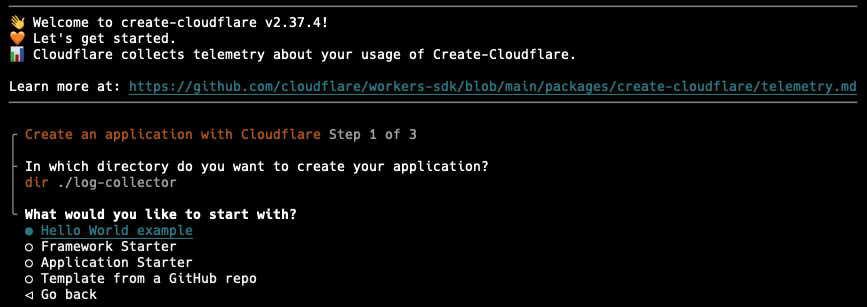
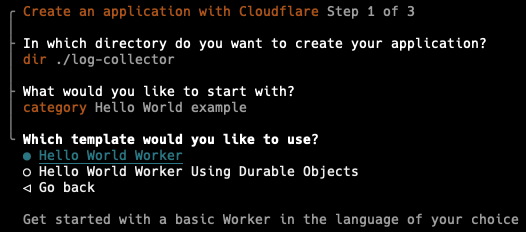
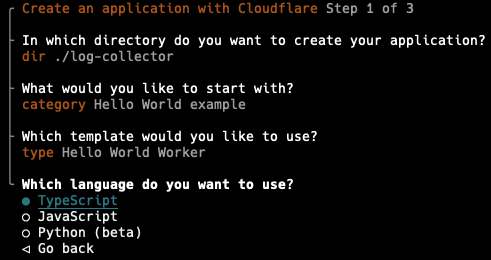
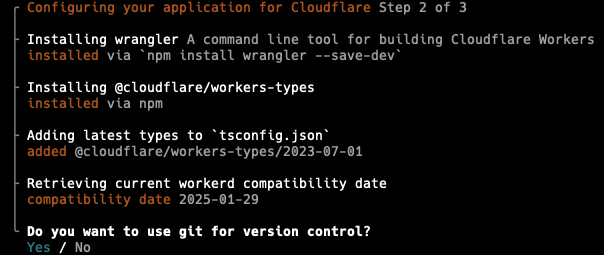
Create a new Worker project
First, use the Cloudflare Worker CLI to create a new Worker project:In this example, we’re using version2.37.4 of the Cloudflare Worker CLI. You may use the latest version, but there might be some minor process differences.log-collector and install the necessary dependencies.Select Git for version control.2
Configure your Worker
Edit your Then copy the TypeScript code into
wrangler.json file to configure the PROFOUND_API_URL environment variable and the route binding:wrangler.json
src/index.ts:src/index.ts
The Worker logs two distinct failures.
Log ingestion rejected the request: <status> <body> means Profound received the request and refused it. This is usually an authentication or payload problem, and the status and body identify which. Failed to send logs: <name>: <message> means the request never completed. TimeoutError is the five-second timeout. Other names point to a connection or configuration problem. Both messages go to the Worker’s logs. You can read them under Workers & Pages > your Worker > Logs.bytes is derived from the content-length response header instead of the response body. Reading the body (for example via response.clone() and blob()) forces Cloudflare to buffer the whole payload in the Worker isolate, which fails with a 5xx on large or streamed responses. This Worker never reads or modifies the response body. It streams the origin response through unchanged, but it is still in the request path, so origin fetch failures surface as they would without it. bytes therefore counts headers plus content-length, and only when the response actually transmits a body (not HEAD, 204, or 304).3
Deploy your Worker
Log in to Cloudflare
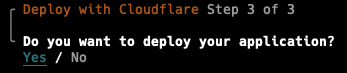
Use the Wrangler CLI to deploy the Worker:Configure the Profound Log Ingestion Token
Secrets is a feature of Cloudflare Workers that allows you to store sensitive information like Log Ingestion Tokens in a secure environment.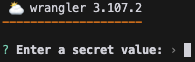
Deploy the Worker
4
Test your implementation
Verify your Worker is functioning correctly:Navigate to Agent Analytics in Profound and check that logs appear in the Logs panel. The AI log filter is on by default. Disable it using the filter in the top of the Logs panel.If logs appear, you are all set. You should see data populate in the Analytics dashboard.
Troubleshooting
-
If logs aren’t appearing, verify your
PROFOUND_API_URLenvironment variable andPROFOUND_LOG_INGESTION_TOKENsecret are configured correctly -
Log ingestion rejected the request: 401or403in the Worker logs: thePROFOUND_LOG_INGESTION_TOKENsecret is missing, misspelled, or not the token issued for this site. Set it again withnpx wrangler secret put PROFOUND_LOG_INGESTION_TOKEN -
Failed to send logs: TimeoutError: the log request passed the five-second timeout. A small number of these is expected and costs you only the affected log lines, since the timeout keeps the logging call away from your visitors. A sustained rate is worth reporting to Profound support with a fewrequestIdvalues from the Worker logs -
Failed to send logs:with any other error name: checkPROFOUND_API_URLagainst the value in the configuration step above. A URL that resolves to a hostname on your own Cloudflare zone makes the Worker call itself, which fails on every request - Check Cloudflare Workers > Analytics for any execution errors
- Ensure your route pattern matches your domain configuration
- Verify the Worker is receiving requests by checking the Cloudflare dashboard metrics
-
Intermittent 5xx after deploying the Worker: check Metrics > Errors > Invocation Statuses for
Exceeded Memory(Error 1102) orScript threw exception(Error 1101). Both mean the Worker itself is failing, not your origin. Confirm you are running the code above (noclone(), no body reads) and that the logging call is wrapped inctx.waitUntil()with a.catch() -
Google Ads / Merchant Center disapprovals such as “destination not working” or “image not accessible” after deploying the Worker: these come from
AdsBot-Googleor the Merchant Center fetcher receiving one of the Worker errors above. Fix the Worker errors, then request a re-review -
To rule the Worker out entirely, remove the route binding (
npx wrangler triggers deleteor delete the route in the dashboard) and confirm the errors stop
Additional resources
- Cloudflare Workers Documentation
- Wrangler CLI Documentation
- Contact support@tryprofound.com for API-related questions
Security considerations
- Store Log Ingestion Tokens as secrets in production environments
- Regularly rotate Log Ingestion Tokens
- Monitor Worker usage and logs for unusual patterns