> ## Documentation Index
> Fetch the complete documentation index at: https://docs.tryprofound.com/llms.txt
> Use this file to discover all available pages before exploring further.
# Cloudflare Integration (Worker)
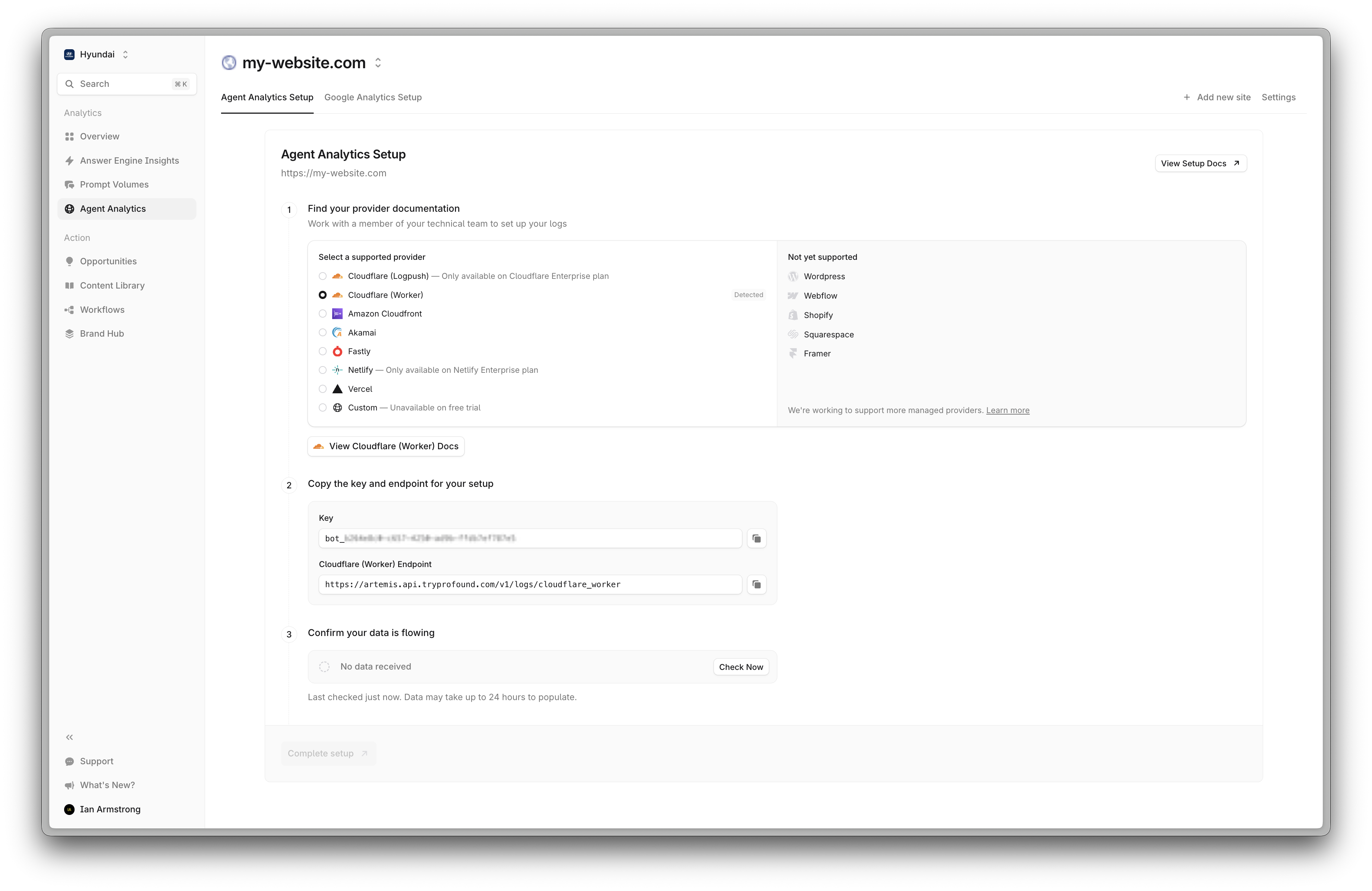
> This documentation explains how to set up and deploy a Cloudflare Worker that captures HTTP request data and forwards it to Profound Agent Analytics platform using Cloudflare Worker.
## Overview
The integration uses a Cloudflare Worker that runs as middleware to collect request metadata and send it to our Agent Analytics API. The Worker captures important request information like IP addresses, user agents, and referrers without affecting the actual request handling.
## Prerequisites
* A Cloudflare account with access to Workers
* Node.js installed on your development machine
* Access to your domain's Cloudflare configuration
* A Profound Log Ingestion Token for Agent Analytics
Using Cloudflare Enterprise plan? Check out our integration guide using Cloudflare Logpush. Logpush is always preferable to a Worker: it is out-of-band and cannot affect live traffic.
A Worker on a `*` route sits in the request path for **every** request to that hostname, so it can affect production traffic. Use the code below as-is, and in particular:
* Never clone the response or read the response body inside the Worker. Buffering bodies can exceed the Worker's 128 MB isolate memory limit, which Cloudflare surfaces to the visitor (or crawler) as [Error 1102 `Worker exceeded resource limits`](https://developers.cloudflare.com/support/troubleshooting/http-status-codes/cloudflare-1xxx-errors/error-1102/).
* Keep the logging call inside `ctx.waitUntil()` and swallow its errors so a slow or failing log request can never turn into a 5xx.
* Keep sensitive paths out of the Worker entirely. The path list in the code below only skips logging; requests still pass through the Worker. To take checkout, cart, and admin paths out of the Worker's path completely, narrow the route pattern itself (or add a higher-priority route that is not bound to the Worker).
Symptoms of a Worker that breaks these rules are intermittent 5xx responses on large or streamed responses, and downstream fallout such as Google Merchant Center / Google Ads disapprovals ("destination not working", "image not accessible") when `AdsBot-Google` hits one of those errors during a crawl.
Running a Shopify storefront? Do not put a Worker in front of it. Use one of the log drain options in our Shopify guide instead, which collects logs out-of-band.
 ## Implementation Guide
Create a new Worker project and install dependencies:
### Create a new Worker project
First, use the Cloudflare Worker CLI to create a new Worker project:
In this example, we're using version `2.37.4` of the Cloudflare Worker CLI. You may use the latest version, but there might be some minor process differences.
```bash theme={null}
npm create cloudflare@2.37.4 -- log-collector
```
After npm launches, you'll be prompted to select a starting point. Select "Hello World" as your starting category.
## Implementation Guide
Create a new Worker project and install dependencies:
### Create a new Worker project
First, use the Cloudflare Worker CLI to create a new Worker project:
In this example, we're using version `2.37.4` of the Cloudflare Worker CLI. You may use the latest version, but there might be some minor process differences.
```bash theme={null}
npm create cloudflare@2.37.4 -- log-collector
```
After npm launches, you'll be prompted to select a starting point. Select "Hello World" as your starting category.
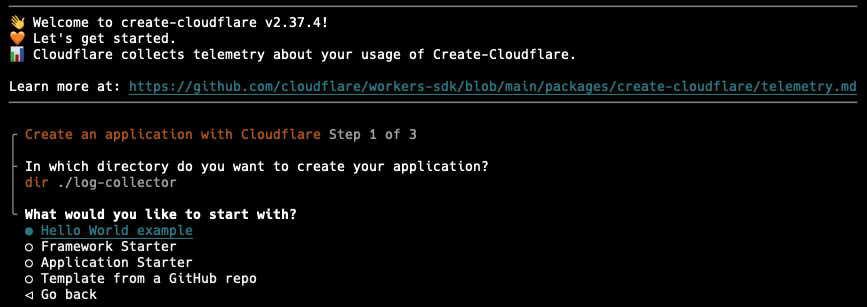 Select the "Hello World" worker template.
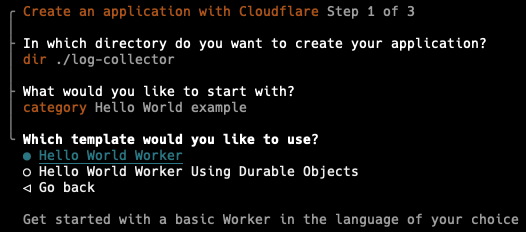 Select the "TypeScript" language.
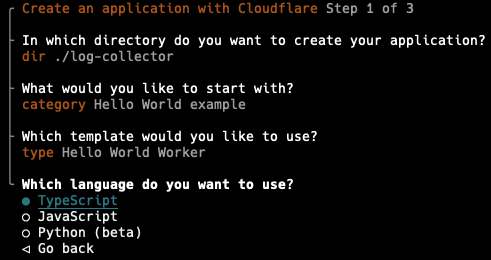 Now the CLI will create a new project with the name `log-collector` and install the necessary dependencies.
Select Git for version control.
Now the CLI will create a new project with the name `log-collector` and install the necessary dependencies.
Select Git for version control.
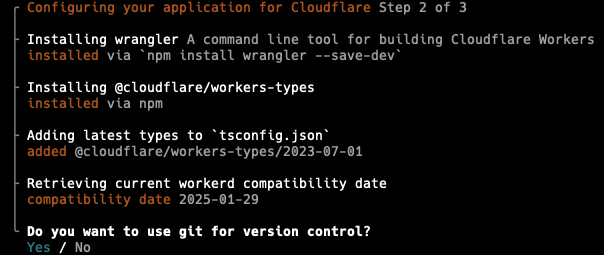 Deploy the application now. The application will be deployed with a cloudflare development domain and will not affect your production environment.
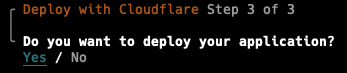 Cloudflare CLI will prompt you to login and select the account you want to deploy the application to. Please choose the account your domain is associated with.
Cloudflare should automatically open a browser window with "Hello World" displayed. You can navigate to the project directory once the application is deployed.
```bash theme={null}
cd log-collector
```
Edit your `wrangler.json` file to configure the `PROFOUND_API_URL` environment variable and the route binding:
Replace pattern `example.com/*` with your actual domain. Use your target site URL (usually marketing site). For example, if your marketing site is `https://www.example.com`, you should use `www.example.com/*` as the pattern.
The `zone_name` should be your canonical domain without the [www](http://www).
If you are not sure about the correct configuration, please contact [Profound support](mailto:support@tryprofound.com).
```json wrangler.json theme={null}
{
"$schema": "node_modules/wrangler/config-schema.json",
"name": "log-collector",
"main": "src/index.ts",
"compatibility_date": "2025-01-29",
"observability": {
"enabled": true
},
"route": {
"pattern": "example.com/*",
"zone_name": "example.com"
},
"vars": { "PROFOUND_API_URL": "https://artemis.api.tryprofound.com/v1/logs/cloudflare_worker" }
}
```
Then copy the TypeScript code into `src/index.ts`:
```typescript src/index.ts theme={null}
/**
* Cloudflare Worker for Log Collection
*
* Forwards request metadata to Profound's log collection API. The origin
* response body is never read or modified, and every error in the logging
* path is swallowed, so logging cannot alter the response.
*/
export interface Env {
PROFOUND_API_URL: string;
PROFOUND_LOG_INGESTION_TOKEN: string;
}
// Paths that are not logged. Matched on full path segments, so '/cart' does
// not match '/cartography'.
const EXCLUDED_PATHS = ['/checkout', '/cart', '/admin', '/api'];
// Percent-decoded and lowercased so encoded variants such as '/%63heckout'
// and '/checkout%2Fpayment' match the same way the origin routes them.
function normalizePath(pathname: string): string {
try {
return decodeURIComponent(pathname).toLowerCase();
} catch {
return pathname.toLowerCase();
}
}
function isExcluded(pathname: string): boolean {
const path = normalizePath(pathname);
return EXCLUDED_PATHS.some(
(excluded) => path === excluded || path.startsWith(`${excluded}/`),
);
}
export default {
async fetch(request: Request, env: Env, ctx: ExecutionContext): Promise {
const response = await fetch(request);
const skip = response.status === 101 || isExcluded(new URL(request.url).pathname);
if (!skip) {
ctx.waitUntil(
sendLog(request, response, env).catch((error) =>
console.error('Failed to send logs:', error),
),
);
}
return response;
},
} satisfies ExportedHandler;
async function sendLog(request: Request, response: Response, env: Env) {
const requestUrl = new URL(request.url);
// +2 for ': ' and +2 for '\r\n' per header
const headerSize = Array.from(response.headers.entries()).reduce(
(total, [key, value]) => total + key.length + value.length + 4,
0,
);
// Derived from content-length so the body is never buffered. Streamed or
// chunked responses have no content-length and are reported as headers only.
// HEAD and bodyless statuses advertise a content-length that is never sent,
// so their body size is counted as zero.
const contentLength = Number(response.headers.get('content-length'));
const transmitsBody =
request.method !== 'HEAD' && response.status !== 204 && response.status !== 304;
const bodySize = transmitsBody && Number.isFinite(contentLength) ? contentLength : 0;
const bytes = headerSize + bodySize;
const logData = {
timestamp: Date.now(),
host: requestUrl.hostname,
method: request.method,
pathname: requestUrl.pathname,
query_params: Object.fromEntries(requestUrl.searchParams),
ip: request.headers.get('cf-connecting-ip'),
userAgent: request.headers.get('user-agent'),
referer: request.headers.get('referer'),
bytes,
status: response.status,
};
const logResponse = await fetch(env.PROFOUND_API_URL, {
method: 'POST',
headers: {
'Content-Type': 'application/json',
'X-API-Key': env.PROFOUND_LOG_INGESTION_TOKEN,
},
body: JSON.stringify([logData]),
signal: AbortSignal.timeout(5000),
});
await logResponse.body?.cancel();
}
```
`bytes` is derived from the `content-length` response header instead of the response body. Reading the body (for example via `response.clone()` and `blob()`) forces Cloudflare to buffer the whole payload in the Worker isolate, which fails with a 5xx on large or streamed responses. This Worker never reads or modifies the response body — it streams the origin response through unchanged — but it is still in the request path, so origin fetch failures surface as they would without it. `bytes` therefore counts headers plus `content-length`, and only when the response actually transmits a body (not `HEAD`, `204`, or `304`).
### Login to Cloudflare
Use the Wrangler CLI to deploy the Worker:
```bash theme={null}
# Login to Cloudflare
npx wrangler login
```
### Configure the Profound Log Ingestion Token
Secrets is a feature of Cloudflare Workers that allows you to store sensitive information like Log Ingestion Tokens in a secure environment.
```bash theme={null}
# Configure the Log Ingestion Token secret
npx wrangler secret put PROFOUND_LOG_INGESTION_TOKEN
```
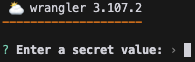
You will be prompted to enter the Log Ingestion Token. Copy and paste the token and press enter.
Cloudflare CLI will prompt you to login and select the account you want to deploy the application to. Please choose the account your domain is associated with.
Cloudflare should automatically open a browser window with "Hello World" displayed. You can navigate to the project directory once the application is deployed.
```bash theme={null}
cd log-collector
```
Edit your `wrangler.json` file to configure the `PROFOUND_API_URL` environment variable and the route binding:
Replace pattern `example.com/*` with your actual domain. Use your target site URL (usually marketing site). For example, if your marketing site is `https://www.example.com`, you should use `www.example.com/*` as the pattern.
The `zone_name` should be your canonical domain without the [www](http://www).
If you are not sure about the correct configuration, please contact [Profound support](mailto:support@tryprofound.com).
```json wrangler.json theme={null}
{
"$schema": "node_modules/wrangler/config-schema.json",
"name": "log-collector",
"main": "src/index.ts",
"compatibility_date": "2025-01-29",
"observability": {
"enabled": true
},
"route": {
"pattern": "example.com/*",
"zone_name": "example.com"
},
"vars": { "PROFOUND_API_URL": "https://artemis.api.tryprofound.com/v1/logs/cloudflare_worker" }
}
```
Then copy the TypeScript code into `src/index.ts`:
```typescript src/index.ts theme={null}
/**
* Cloudflare Worker for Log Collection
*
* Forwards request metadata to Profound's log collection API. The origin
* response body is never read or modified, and every error in the logging
* path is swallowed, so logging cannot alter the response.
*/
export interface Env {
PROFOUND_API_URL: string;
PROFOUND_LOG_INGESTION_TOKEN: string;
}
// Paths that are not logged. Matched on full path segments, so '/cart' does
// not match '/cartography'.
const EXCLUDED_PATHS = ['/checkout', '/cart', '/admin', '/api'];
// Percent-decoded and lowercased so encoded variants such as '/%63heckout'
// and '/checkout%2Fpayment' match the same way the origin routes them.
function normalizePath(pathname: string): string {
try {
return decodeURIComponent(pathname).toLowerCase();
} catch {
return pathname.toLowerCase();
}
}
function isExcluded(pathname: string): boolean {
const path = normalizePath(pathname);
return EXCLUDED_PATHS.some(
(excluded) => path === excluded || path.startsWith(`${excluded}/`),
);
}
export default {
async fetch(request: Request, env: Env, ctx: ExecutionContext): Promise {
const response = await fetch(request);
const skip = response.status === 101 || isExcluded(new URL(request.url).pathname);
if (!skip) {
ctx.waitUntil(
sendLog(request, response, env).catch((error) =>
console.error('Failed to send logs:', error),
),
);
}
return response;
},
} satisfies ExportedHandler;
async function sendLog(request: Request, response: Response, env: Env) {
const requestUrl = new URL(request.url);
// +2 for ': ' and +2 for '\r\n' per header
const headerSize = Array.from(response.headers.entries()).reduce(
(total, [key, value]) => total + key.length + value.length + 4,
0,
);
// Derived from content-length so the body is never buffered. Streamed or
// chunked responses have no content-length and are reported as headers only.
// HEAD and bodyless statuses advertise a content-length that is never sent,
// so their body size is counted as zero.
const contentLength = Number(response.headers.get('content-length'));
const transmitsBody =
request.method !== 'HEAD' && response.status !== 204 && response.status !== 304;
const bodySize = transmitsBody && Number.isFinite(contentLength) ? contentLength : 0;
const bytes = headerSize + bodySize;
const logData = {
timestamp: Date.now(),
host: requestUrl.hostname,
method: request.method,
pathname: requestUrl.pathname,
query_params: Object.fromEntries(requestUrl.searchParams),
ip: request.headers.get('cf-connecting-ip'),
userAgent: request.headers.get('user-agent'),
referer: request.headers.get('referer'),
bytes,
status: response.status,
};
const logResponse = await fetch(env.PROFOUND_API_URL, {
method: 'POST',
headers: {
'Content-Type': 'application/json',
'X-API-Key': env.PROFOUND_LOG_INGESTION_TOKEN,
},
body: JSON.stringify([logData]),
signal: AbortSignal.timeout(5000),
});
await logResponse.body?.cancel();
}
```
`bytes` is derived from the `content-length` response header instead of the response body. Reading the body (for example via `response.clone()` and `blob()`) forces Cloudflare to buffer the whole payload in the Worker isolate, which fails with a 5xx on large or streamed responses. This Worker never reads or modifies the response body — it streams the origin response through unchanged — but it is still in the request path, so origin fetch failures surface as they would without it. `bytes` therefore counts headers plus `content-length`, and only when the response actually transmits a body (not `HEAD`, `204`, or `304`).
### Login to Cloudflare
Use the Wrangler CLI to deploy the Worker:
```bash theme={null}
# Login to Cloudflare
npx wrangler login
```
### Configure the Profound Log Ingestion Token
Secrets is a feature of Cloudflare Workers that allows you to store sensitive information like Log Ingestion Tokens in a secure environment.
```bash theme={null}
# Configure the Log Ingestion Token secret
npx wrangler secret put PROFOUND_LOG_INGESTION_TOKEN
```
You will be prompted to enter the Log Ingestion Token. Copy and paste the token and press enter.
 ### Deploy the Worker
```bash theme={null}
# Deploy the Worker
npx wrangler deploy
```
Verify your Worker is functioning correctly:
Navigate to Profound Analytics and check if the logs are being collected in the Log panel. Note that AI log filter is on by default. Please disable it using the filter on the top right corner of the Logs panel.
If logs are appearing, you are all set! You should be able to see data populating in the Analytics dashboard.
## Troubleshooting
* If logs aren't appearing, verify your `PROFOUND_API_URL` environment variable and `PROFOUND_LOG_INGESTION_TOKEN` secret are configured correctly
* Check Cloudflare Workers > Analytics for any execution errors
* Ensure your route pattern matches your domain configuration
* Verify the Worker is receiving requests by checking the Cloudflare dashboard metrics
* Intermittent 5xx after deploying the Worker: check Metrics > Errors > Invocation Statuses for `Exceeded Memory` (Error 1102) or `Script threw exception` (Error 1101). Both mean the Worker itself is failing, not your origin. Confirm you are running the code above (no `clone()`, no body reads) and that the logging call is wrapped in `ctx.waitUntil()` with a `.catch()`
* Google Ads / Merchant Center disapprovals such as "destination not working" or "image not accessible" after deploying the Worker: these come from `AdsBot-Google` or the Merchant Center fetcher receiving one of the Worker errors above. Fix the Worker errors, then request a re-review
* To rule the Worker out entirely, remove the route binding (`npx wrangler triggers delete` or delete the route in the dashboard) and confirm the errors stop
## Additional Resources
* [Cloudflare Workers Documentation](https://developers.cloudflare.com/workers/)
* [Wrangler CLI Documentation](https://developers.cloudflare.com/workers/wrangler/)
* Contact [support@tryprofound.com](mailto:support@tryprofound.com) for API-related questions
## Security Considerations
* Store Log Ingestion Tokens as secrets in production environments
* Regularly rotate Log Ingestion Tokens
* Monitor Worker usage and logs for unusual patterns
### Deploy the Worker
```bash theme={null}
# Deploy the Worker
npx wrangler deploy
```
Verify your Worker is functioning correctly:
Navigate to Profound Analytics and check if the logs are being collected in the Log panel. Note that AI log filter is on by default. Please disable it using the filter on the top right corner of the Logs panel.
If logs are appearing, you are all set! You should be able to see data populating in the Analytics dashboard.
## Troubleshooting
* If logs aren't appearing, verify your `PROFOUND_API_URL` environment variable and `PROFOUND_LOG_INGESTION_TOKEN` secret are configured correctly
* Check Cloudflare Workers > Analytics for any execution errors
* Ensure your route pattern matches your domain configuration
* Verify the Worker is receiving requests by checking the Cloudflare dashboard metrics
* Intermittent 5xx after deploying the Worker: check Metrics > Errors > Invocation Statuses for `Exceeded Memory` (Error 1102) or `Script threw exception` (Error 1101). Both mean the Worker itself is failing, not your origin. Confirm you are running the code above (no `clone()`, no body reads) and that the logging call is wrapped in `ctx.waitUntil()` with a `.catch()`
* Google Ads / Merchant Center disapprovals such as "destination not working" or "image not accessible" after deploying the Worker: these come from `AdsBot-Google` or the Merchant Center fetcher receiving one of the Worker errors above. Fix the Worker errors, then request a re-review
* To rule the Worker out entirely, remove the route binding (`npx wrangler triggers delete` or delete the route in the dashboard) and confirm the errors stop
## Additional Resources
* [Cloudflare Workers Documentation](https://developers.cloudflare.com/workers/)
* [Wrangler CLI Documentation](https://developers.cloudflare.com/workers/wrangler/)
* Contact [support@tryprofound.com](mailto:support@tryprofound.com) for API-related questions
## Security Considerations
* Store Log Ingestion Tokens as secrets in production environments
* Regularly rotate Log Ingestion Tokens
* Monitor Worker usage and logs for unusual patterns